MapMonster — Complete Guide: Every Setting Explained
By MapMonster team·Published 2026-05-19·12 min read
The app layout, in 30 seconds
MapMonster is two windows. The first is the setup window: a 1280×800 control panel where you configure everything. The second is the overlay window: a transparent always-on-top minimap that sits on top of Rust while you play. The setup window decides what the overlay does; the overlay just draws what the setup window enables.
The setup window. Topbar shows the active server and a quick connection-status pill. Left rail is the route nav (Dashboard, Servers, Shops, Events, Overlay, Account, Settings). Main area is whichever page is active.
That's the whole shape. The rest of this guide is one section per route, in the order they appear in the sidebar.
1. Dashboard
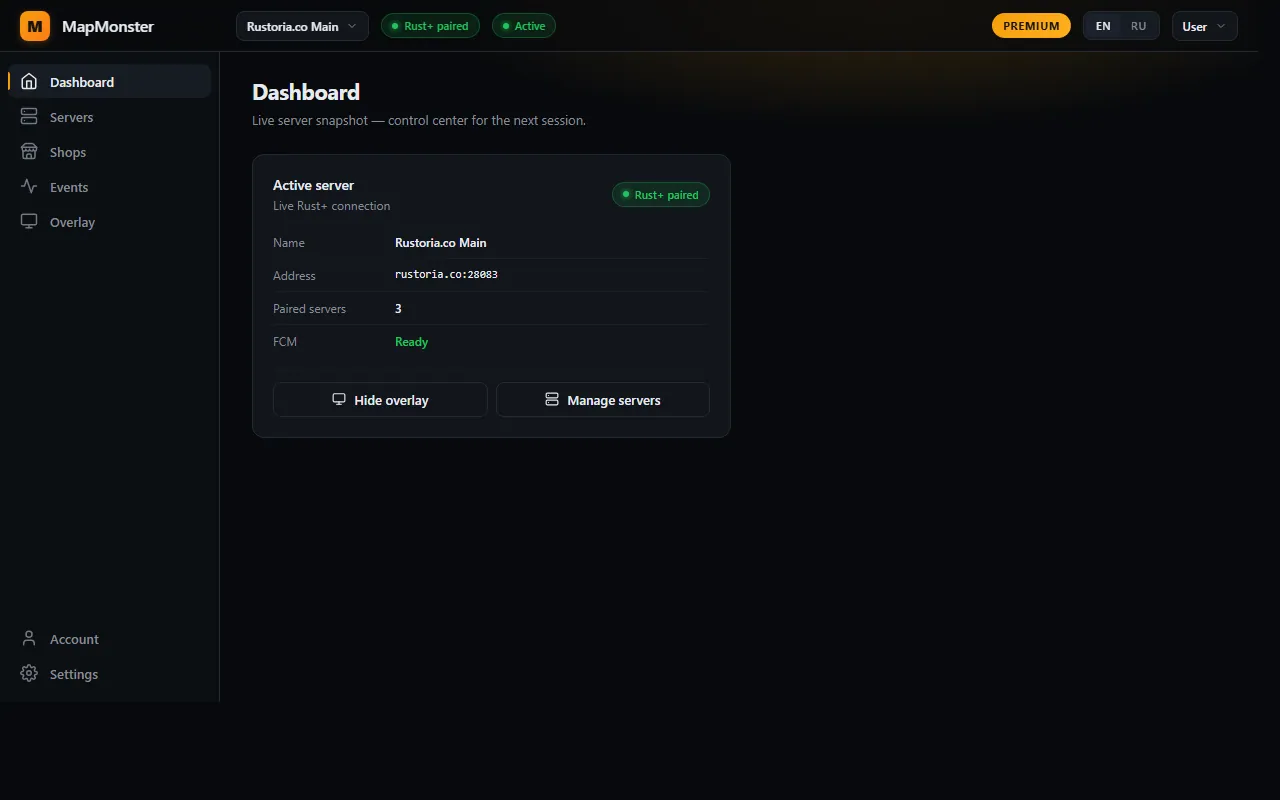
The Dashboard is the room you land in. Single card showing which Rust+ server MapMonster is currently watching, the server's address, how many you have paired total, and whether the FCM listener — the bit of MapMonster that catches pairing pushes from your phone — is online. Two buttons: Hide overlay (or Open overlay if it's currently hidden) and Manage servers.
You won't spend much time here once everything is configured — most days the dashboard exists so you can glance at the green Rust+ paired pill, see that everything is alive, and go back to actually playing.
Active server card
Shows name, address, paired count, FCM status. Read-only — switching happens in the Servers page, not here.
Hide / Open overlay
Toggles the transparent in-game minimap window. Same as the topbar shortcut. Don't worry — the overlay is click-through, so toggling it never steals input from Rust.
Manage servers
Shortcut to the Servers page below.
2. Servers
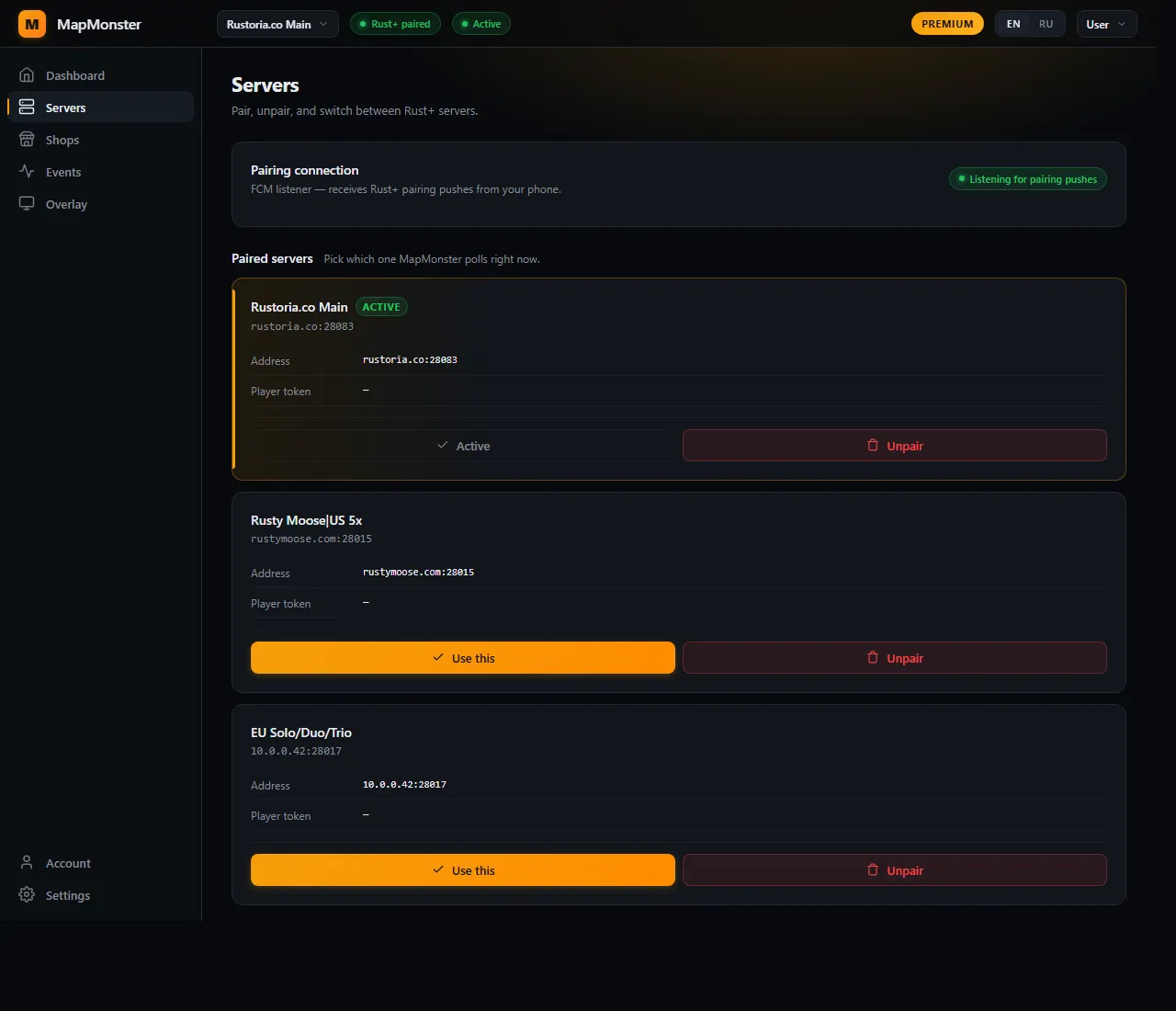
This is where MapMonster lists every Rust+ pairing it knows about, and where you pick the one to track right now. Most players have 2–5 paired servers as wipe cycles rotate.
Top card is the FCM listener — the always-on background process that catches Rust+ pairing pushes from your phone. Below: one card per paired server. The one labelled ACTIVE is what MapMonster tracks right now.
FCM listener status
Green Listening for pairing pushes = healthy. Yellow / red = needs re-auth — click Sign in to refresh your Rust+ credentials via Steam. The listener is what receives the "pair" message when you press the Rust+ button in-game.
Server cards
One per pairing. Shows name, address, paired-on date, and a Player Token line (the Rust+ access token MapMonster uses to poll that server — kept opaque; clears automatically when the wipe ends).
Active button
Click on any non-active server card to make it the current one. The overlay re-renders with the new map; team / shops / events all repoint to the new server instantly.
Unpair button
Drops the server from MapMonster. Doesn't affect anything in-game or in the Rust+ mobile app — just removes the local pairing. Useful for cleaning up dead servers between wipes.
3. Shops
This is the page where Premium pays for itself. Everything here is about vending machines — when a new one shows up, when an existing one changes its inventory, and (with the Loot Interceptor) when one of those listings is so underpriced that it's almost certainly a giveaway or alt-to-main loot dump.
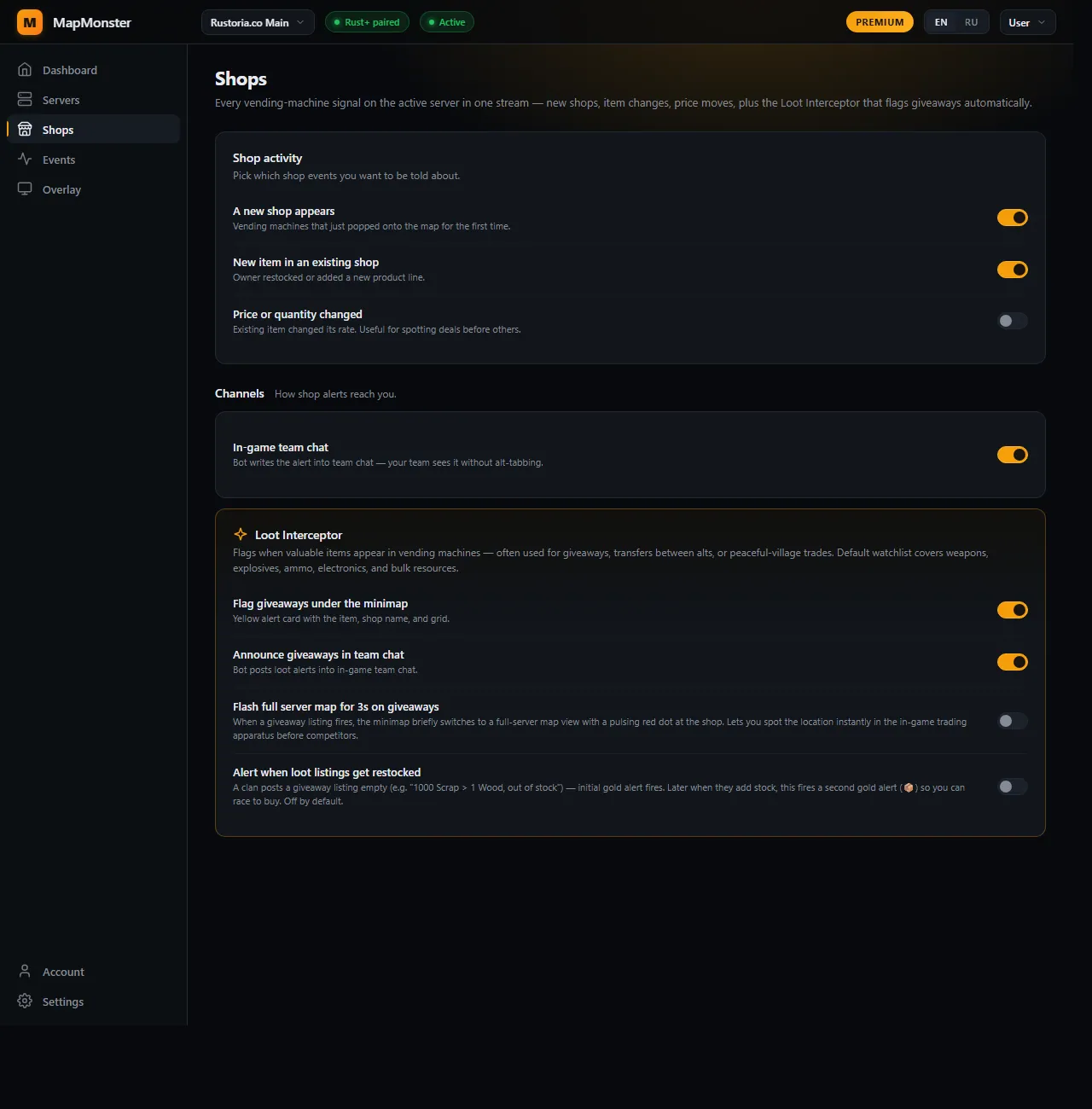
Three sections. Shop activity picks what kinds of vending-machine changes generate an alert. Channels picks where those alerts go (besides the minimap). Loot Interceptor is the premium AI-flagged giveaways module.
Shop activity
Three triggers, all premium. They decide what makes an alert fire — not where it goes (that's the channels block below). All three default to ON for premium users; turn off whichever generates too much noise on your server.
A new shop appearsPREM
Fires the first time a vending machine is detected anywhere on the map. We remember every shop ID per wipe so server reboots and shop ID rotations don't generate phantom "new" events. This is the lowest-noise of the three — typically 5–20 per wipe.
New item in an existing shopPREM
Fires when an owner restocks or adds a new product line to a shop already on the map. Format you'll see in the feed: + 1x MP5A4 > 20x Mushroom — meaning the seller wants 1 MP5A4 in exchange for 20 mushrooms. Noisier — 30–100 per wipe.
Price or quantity changedPREM
Fires when an existing listing's rate moves — same item, different price or stock. Off by default because volume can be high on active wipes (100–300/wipe). Turn on if you're specifically hunting for price drops.
Channels
Where alerts surface, beyond the minimap card under your overlay window.
In-game team chatPREM
When a shop alert fires, MapMonster also writes a one-liner into your Rust+ team chat — so teammates without MapMonster see it on their phones, and you don't have to alt-tab to relay. Off if you're playing solo; on if you're coordinating a duo/trio.
Loot Interceptor
The headline premium feature. Loot Interceptor watches every vending machine on every server MapMonster sees, classifies trade fairness based on real per-wipe pricing data, and flags listings that are far underpriced — typically giveaways from a clan to their alts, mis-priced loot dumps, or peaceful-village trades worth racing to.
You'll recognize a Loot Interceptor entry in the feed by the 💎 prefix and the orange ✨ icon. The format is 💎 400x Crude Oil > 1x Raw Bear Meat — 1 trades · 400 Crude Oil — meaning someone listed 400 crude oil in exchange for one piece of meat (i.e. effectively free), with 1 trade available and 400 crude in stock.
Flag giveaways under the minimapPREM
Loot intercepts get the yellow gold-bordered alert card beneath your in-game minimap, with the item, shop name, and grid. This is the core delivery — leave it on.
Announce giveaways in team chatPREM
Posts the same alert into your Rust+ team chat. Useful so the teammate physically closer to the grid grabs it. Spam risk is low — typical wipe sees 5–15 intercepts.
Flash full server map for 3s on giveawaysPREM
When an intercept fires, the minimap briefly zooms out to the full map and pulses a red dot at the shop grid. Lets you spot the location instantly in the in-game trading apparatus before competitors. Off by default — most players find the zoom transition disorienting; on for veterans who race intercepts.
Alert when loot listings get restockedPREM
Clan trick: list 1000 scrap for a piece of meat, sell out in 10 seconds (you nor anyone else can get there fast enough), an alt refills it 5 minutes later. The first wave you missed; the restock is your second chance. This toggle re-fires the 💎 alert when a previously-emptied flagged shop gets refilled, shown as 📦 in the feed. Off by default — opt in if you're aggressively hunting.
4. Events
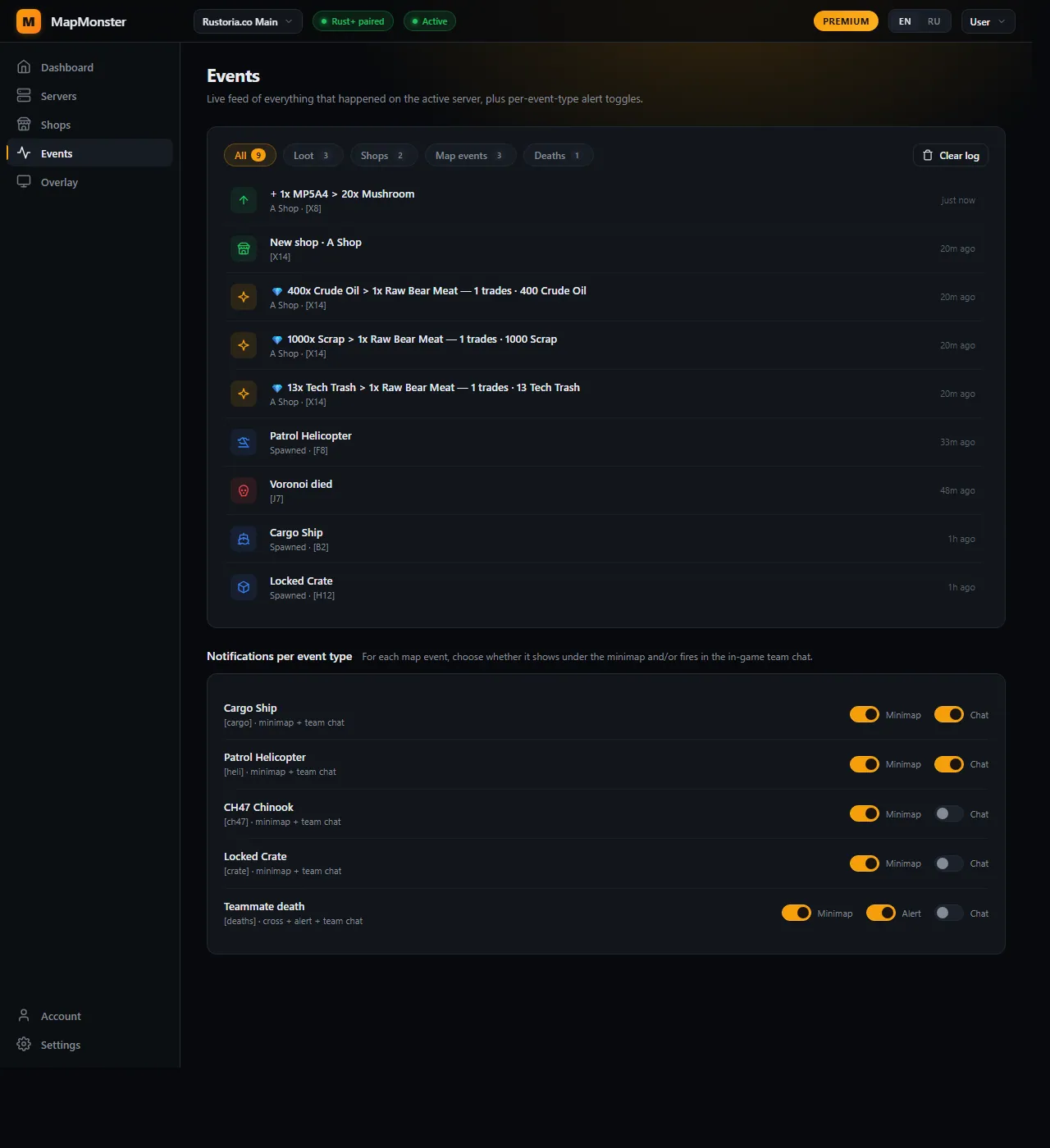
Two halves: the live activity feed at the top (every shop / loot / map event / death that happened on the active server, newest first), and the per-event toggles at the bottom (where each event type shows up — minimap, team chat, or both).
Filter chips up top (All / Loot / Shops / Map events / Deaths). The feed below shows shop_added entries (+ 1x MP5A4 > 20x Mushroom), new shops, Loot Interceptor hits (💎), map events (cargo, heli, locked crate), and teammate deaths. Bottom panel: per-event channel toggles.
Activity feed
The feed is purely diagnostic — it's the audit log of what fired and when. Capped at 50 entries by the main process. Click Clear log top-right to flush. The filter chips above the feed scope to one category at a time; the count on each chip tells you how many of that type exist in the current 50-entry window.
All
No filter. Free + premium events mixed.
LootPREM
Just Loot Interceptor hits (💎 first-detection, 📦 restock).
ShopsPREM
Shop changes — new shop appeared, item added, price changed.
For each map event, two toggles: Minimap (show under the in-game minimap as a card + icon on the map) and Chat (write into Rust+ team chat so phones and teammates see it). All free.
Cargo ShipFREE
Heli-mat container that spawns offshore and patrols the coast. Both toggles default ON — cargo is the most-played PvP event of any wipe.
Patrol HelicopterFREE
Map-wide attack helicopter. Both toggles default ON. Worth keeping on even if you don't want to fight it — knowing where it's heading is half the survival.
CH47 ChinookFREE
Drops the locked crate at one of the monument helipads. Minimap on by default, chat off (it's an event you usually want to keep to yourself).
Locked CrateFREE
The yellow puzzle crate spawns at oilrig and after CH47 drops. Minimap on; chat off — same logic as CH47.
Teammate deathFREE
Three independent toggles: Marker (the red X cross stays on the minimap at the death grid), Alert (popup card under the minimap), Team chat (post into Rust+ chat). Most players keep Marker + Alert on, Chat off — chat spam during a base raid is annoying.
5. Overlay
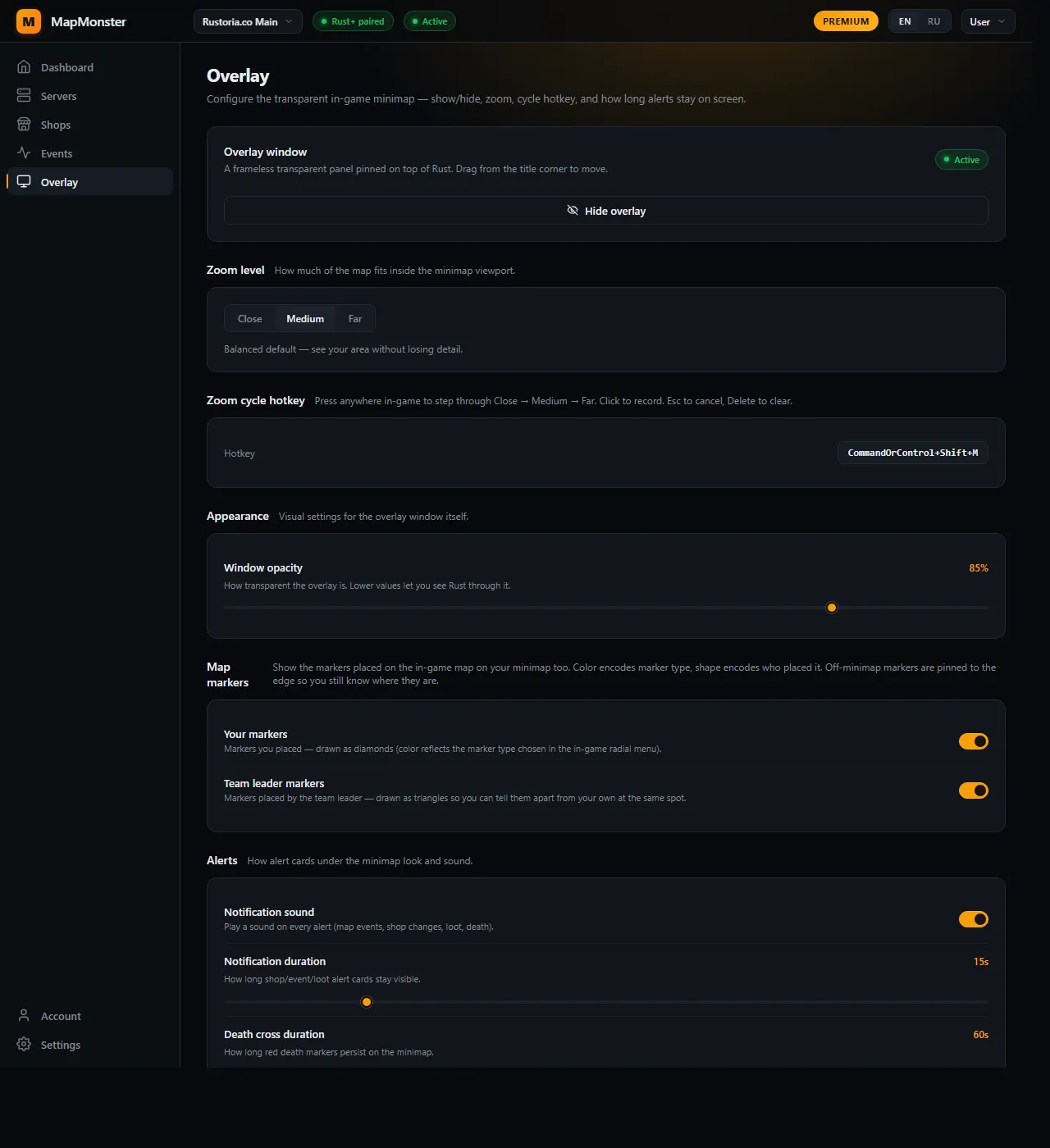
This is where you configure the transparent in-game minimap itself — the window that sits on top of Rust while you play. Six sections: state, zoom, hotkey, appearance, map notes, alerts.
Every overlay-affecting setting on one page. State at top, then zoom, hotkey, opacity, map markers, alerts (sound + how long cards and death crosses stay visible).
Overlay window
The single button toggles the transparent minimap on or off. When on, you'll see the Active pill top-right; when off, an Inactive pill. The overlay window is frameless, always-on-top, and click-through — clicks fall straight through to Rust unless you hold the drag corner.
Zoom level
Three presets. Pick whichever feels right for the way you play — most players cycle between Close (for tight base building / nearby roamers) and Medium (default for road / cave runs).
CloseFREE
~2 grids of view in each direction. Useful when defending a base or fighting in monuments — close enemies and teammate icons are big and readable.
MediumFREE
~4 grids each way. The default. Balanced view of immediate surroundings plus enough headroom to spot heli or cargo coming.
FarFREE
~7 grids each way. Good for long road runs, naval / heli approach, and pre-raid scouting where you want to see ~half the map without opening it.
Zoom cycle hotkey
Single recordable shortcut that cycles Close → Medium → Far → Close without alt-tabbing out of Rust. Click the kbd-styled button, press your combo (anything goes — modifiers + a key), it's saved instantly. Default is CommandOrControl+Shift+M. Press Esc to cancel recording, Delete to clear the hotkey entirely.
Appearance — Window opacity
Slider from 25% to 100%. Lower opacity = more see-through, lets you peek through the minimap at whatever Rust is showing beneath it. Useful for tight base interiors where the minimap covers a doorway. Default 100% (fully opaque); most players settle around 80–90% so they still get visual hierarchy but lose less to occlusion.
Map markers
Whether MapMonster mirrors the markers you and your team leader place on the in-game G-map onto your minimap too. Both default ON. Markers you place show as diamonds; team leader's markers show as triangles — so you can tell at-a-glance who pinned what at the same spot.
Your markersFREE
Markers you placed on the in-game map (via the radial menu) get drawn on the minimap as diamonds. Color matches the marker type you chose in Rust.
Team leader markersFREE
Markers placed by the team leader — drawn as triangles. Off if you don't want to see callouts from your leader; on if you want raid callouts and base-mark reminders.
Alerts
Sound + the two duration sliders that govern how long alert cards stay on screen.
Notification soundFREE
Plays a soft chime when any alert fires — map events, shop activity (premium), loot intercepts (premium), teammate deaths. Single toggle for all event types; the sound is balanced not to compete with Rust's own audio. Off if you'd rather rely on visuals only.
Notification durationFREE
Slider, 5–60 seconds, default 15s. How long shop / event / loot alert cards stay visible beneath the minimap before fading. Shorter = less visual noise; longer = more time to react during a fight.
Death cross durationFREE
Slider, 10–300 seconds, default 60s. How long the red X marker for a teammate death persists on the minimap. Useful so you can navigate back to recover gear (or avoid the body if it's a known kill grid).
6. Account
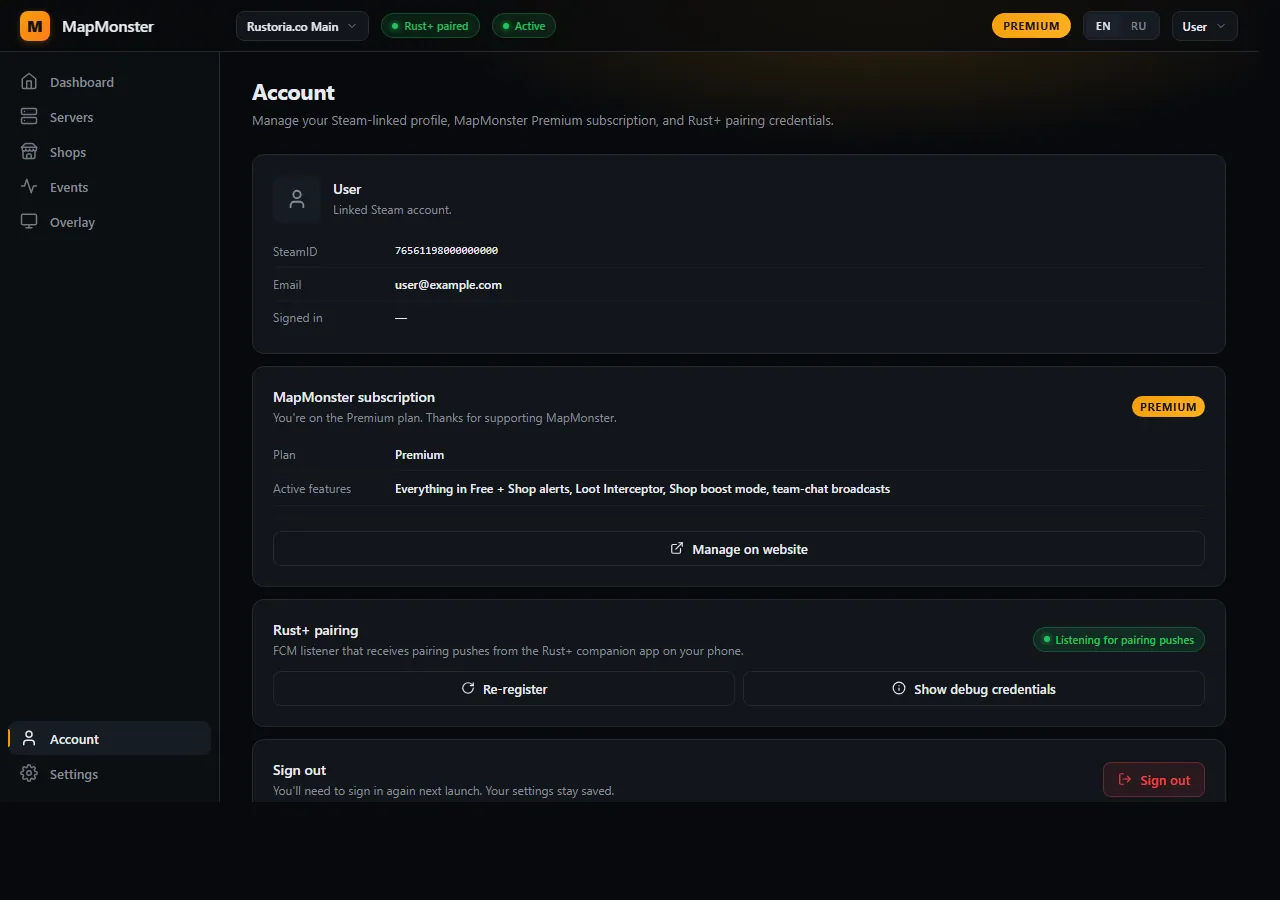
Where your account and subscription live. Steam sign-in identity, current plan, renewal date, and the device this session is bound to.
Steam identity at top with PREMIUM badge if applicable. Plan, renewal, and device fingerprint below. Manage subscription / Sign out buttons at the bottom.
Steam identity
Your Steam name and Steam ID. MapMonster signs you in via Steam directly — no password to manage, no email confirm beyond first signup. The avatar circle in the topbar mirrors your Steam avatar.
Plan / Next renewal
If you're free-tier, this shows Free and an Upgrade CTA. If premium, you see MapMonster Premium · $5/mo with the next charge date. PayNow.gg is the merchant of record; the manage button takes you to the website's /account page where cancellation lives.
This device
MapMonster binds your session to this PC. Signing in on a second PC kicks the first one out — last-start-wins. This is what stops Premium being shared across accounts.
Manage subscription
Opens the website cabinet at rustminimap.com/account, where billing lives. Cancel anytime — premium stays active until the period end.
Sign out
Drops the local session and ends it on our end too. Next time you launch the app you'll see the Steam sign-in card again.
7. Settings
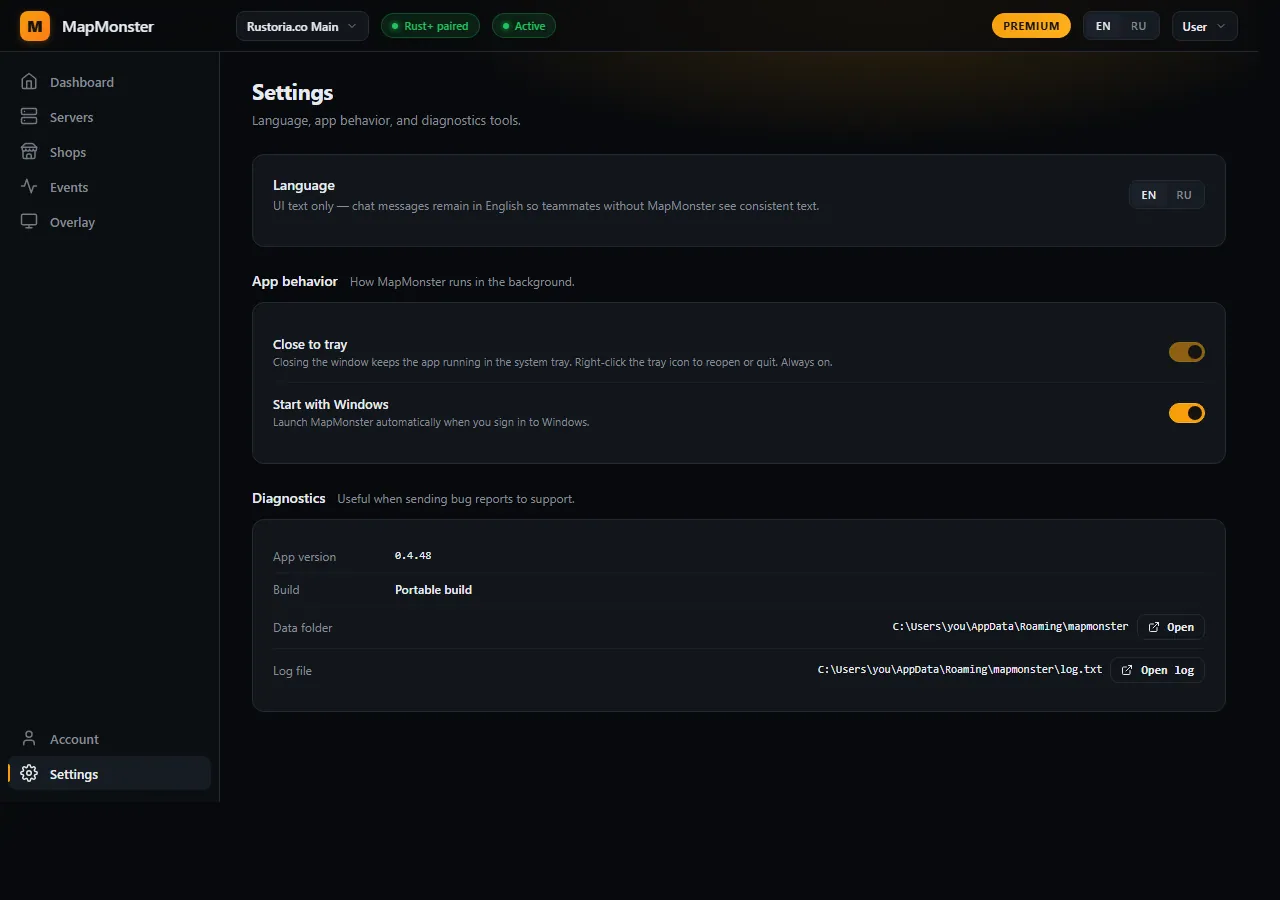
App-wide preferences. Three blocks: language, runtime behavior, and diagnostics for support tickets.
Language switch (mirrors the topbar). App behavior toggles. Diagnostics — version, data folder, log file path — for support tickets.
Language
EN / RU. Switches the entire app + all alert text instantly. Persists across launches. Same toggle exists in the topbar — this is just the canonical home.
Close to system tray
Always on (locked). Hitting × on the setup window minimizes to tray instead of quitting — so the FCM listener keeps catching pairing pushes from your phone. To fully quit, right-click the tray icon and pick Quit.
Launch on system startup
Auto-start MapMonster when Windows boots. Recommended if you play daily — the FCM listener has to be running to receive pairings, and missing a pairing means you can't see the server in MapMonster until you re-pair.
Version / Packaged build
Current build number and whether this is a packaged release. The app auto-updates in the background via a soft banner when a new release ships; critical updates show a hard modal.
Data folder
%APPDATA%\mapmonster on Windows. Contains your settings, FCM credentials, server pairings, and cached map images. Open it from the button if you ever want to back up before a reinstall or attach the folder to a support ticket.
Log file
log.txt inside the data folder. Captures every poll, every alert decision, every reconnect. Attach it to bug reports — most issues are diagnosable in 30 seconds with the log.
Bonus: the in-game overlay itself
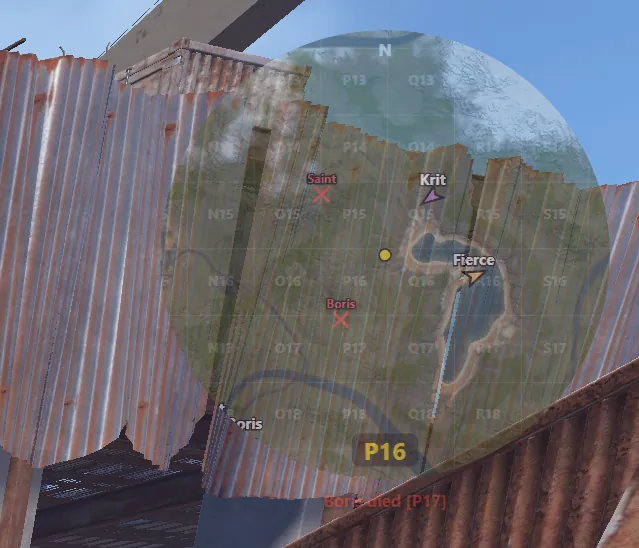
Everything above configures the setup window. The thing that actually shows up on top of Rust while you play is the overlay window — a small transparent panel you can drag anywhere on screen.
The overlay window in-game. Draggable from the corner; click-through everywhere else. Notification cards stack underneath; death crosses pin to the grid until their timer expires.
You'll see:
Teammate icons with names (updated live from the Rust+ data feed)
Map events as icons at the spawn grid (cargo, heli, CH47, crate)
Death crosses for any teammate kill, persisting for the duration you set on the Overlay page
Map markers you placed in-game — as diamonds if yours, triangles if your team leader's
Alert cards under the minimap whenever a shop change or Loot Interceptor hit fires (premium)
Quick cheat sheet
Settings that matter most, ranked:
Servers → Active. Pick the right server. Everything else assumes this is correct.
Overlay → Zoom. Pick Close / Medium / Far based on what you're doing.
Overlay → Notification duration. 15s is fine for most; bump to 30s if you're slow to glance.
Shops → Activity triggers (premium). Turn off Price changes if your server is high-churn.
Shops → Loot Interceptor → Flag under minimap (premium). Leave it on. This is what you're paying for.
Events → Per-event toggles. Disable chat for events you don't want to spam your team about.
What's next
If you haven't installed MapMonster yet, the download page takes you through Steam sign-in and the 3-minute setup. If you're already running and stuck on Rust+ pairing, the pairing guide walks the in-game button flow.
Questions about any setting that's unclear? Drop them in our Discord — patch notes, feature voting, and the team hangs out there.